Ai Relight
AI Relight for Architecture: Change the Light in Your Renders and Photos
Upload a finished render or a photo of a building or room and describe the light you want in one sentence. ArchiVinci generates a new version of the image, and the editor is asked to keep everything else.
Go to app and start rendering
See other modules below:

What is AI relighting?
AI relighting changes the light in a finished image: the time of day, the direction and warmth of the light, and which lamps are on. It needs no new render or photo shoot. In ArchiVinci you upload a render or photo of a building or room to the Edit module and describe the light you want in one sentence.
ArchiVinci generates a new version of the image, and the editor is asked to keep everything else. This is relight AI for architecture, made for renders and photos of buildings and rooms. The app has no separate relight module and Edit has no lighting presets, so you set the light with the sentence you type.
How to Relight a Render or Photo with AI
To change the lighting in a render or a photo, an AI relight needs the image and one sentence.
Open the Edit module with the button below and sign in or create an account; you need one to upload and to generate. A new account gets 3 free credits.
Under Input image, upload one finished render or photo: JPG, PNG or WebP, up to 5 MB. A render you made in ArchiVinci has to be uploaded too, or re-used from the render history.
In the Prompt field, which is required in Edit, describe the light you want in one sentence. Start with the time of day or the weather.
Add where the light comes from and which lamps are on: low sun from the left, or the floor lamp and the pendant lamp switched on.
Leave Render engine on the default, ArchiVinci 4.0, and press Generate. One image costs one credit.
Compare the result with your original in the before/after viewer and download it. For another light, change the prompt and generate again; every such run starts from your original, never from the last result.
What should you write in a relight prompt?
Write one sentence that names the time of day or the weather, where the light comes from, how warm it is and which lamps are on. Keep your relight prompt about light only and leave out what should stay the same, because the app adds the instruction to keep everything else.
Each image below shows one run in the Edit module on the default engine, with its prompt printed above it; results differ from run to run.
Day to Night
A day-to-night prompt turns a daytime render into a night view of the same building: the sky goes dark, and the windows and lamps you name light up. Use the prompt below when a client presentation needs a dusk or night version of a finished render.
Change the lighting to night: a dark blue sky, warm light on in all the windows and the outdoor wall lamps switched on.

Golden Hour
For golden hour, name the side the low sun comes from and ask for long shadows.
Change the lighting to golden hour: low, warm sun from the left and long soft shadows on the facade and the ground.

Dusk for a Listing Photo
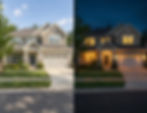
The same kind of prompt works on a photograph: a daytime photo of a house comes back as a dusk version of that house, with the windows lit. To change a real estate listing photo from day to dusk, describe the blue hour sky and name the windows and the lamp by the door. Compare the result with the real house before it goes into the listing.
Change the lighting to dusk: a deep blue sky just after sunset, warm light on in every window and the lamp by the front door switched on.
To show empty rooms of the same property with furniture, see virtual staging.
Overcast Daylight
Ask for an overcast day when hard sun and deep shadows hide the materials.
Change the lighting to an overcast day: a light gray sky and soft, even daylight with faint shadows.
Evening Interior with the Lamps On
Name each lamp that should be on and say what the windows show. Lamps you do not name are up to the AI. The Lamps tag under "Add object (optional)" asks for new lamps to be added; it is not a switch for the ones in your image.
Change the lighting to evening: the pendant lamp switched on with warm light, and a dark blue dusk sky outside the windows.

What stays the same when you relight an image?
The editor is asked to keep everything else in the image, the composition and the camera angle. It is an instruction to an AI model, not a lock, so check small details. They can change because every result is a newly generated image.
Against your original, check the window layout and frames, materials and joints, furniture, plants and anything with lettering.
Shadows, reflections, the sky and the color of surfaces under warm or cool light belong to the light, so expect them to change. If something else moved, or the light is not what you asked for, change the prompt or generate again. The result has the proportions of your original.
When is a new render the better choice?
A new render is the better choice when the light has to be right, not only look right. Render again for the real sun position at a given place and hour, the shadow on one element or the output of particular light fixtures. To set up the lights inside a 3D scene, see our guide to lighting in 3D rendering.
Relighting fits when the design is settled and you need options. A relit image is made for presentation and does not replace a sun study or a lighting calculation.
No finished image yet, only a sketch or 3D view: start with an AI exterior render or the AI interior design generator. The Exterior and Interior modules have a row of lighting buttons, so the light is picked while the render is generated.
A change that is not about light, such as a material or a piece of furniture: see the AI image editor.
A larger version of a finished image: see the AI render enhancer.
The Edit module does other jobs too: to add something to the picture, see how to add an object or people to a render; to move the camera, see how to change the camera angle of a render.
Frequently Asked Questions About AI Relighting
What is the difference between relighting and brightening an image?
Brightening makes the whole image lighter or darker. With relighting, you ask for a different light, such as another time of day or lamps switched on, and get back a new version of the image. For an image that is only too dark, a brightness slider in any photo program is the simpler tool.
Can I relight a photo of a real building or room, or only renders?
You can upload either. The Edit module does not ask whether the image is a render or a photo, and you describe the light the same way.
Every prompt on this page is written for a building or a room.
Can I relight just one part of the image, such as a lamp or a window?
Yes: mark the area with the brush or lasso under the image, confirm it and type the change for that area; only the marked area is generated again. Light does not stop at the edge of a lamp, so mark the lamp together with the wall or floor its light should reach.
Is AI relight free?
A new account gets 3 free credits. One image on the default engine costs one credit, and you need an account to upload and to generate.