Style Transfer AI
Style Transfer AI: Give a Render or Photo a New Style
Upload a render or a photo, add a reference picture or describe the style, and ArchiVinci returns the same scene in the new look. You say what to take from the reference: materials, colors or mood.
Go to app and start rendering
See other modules below:
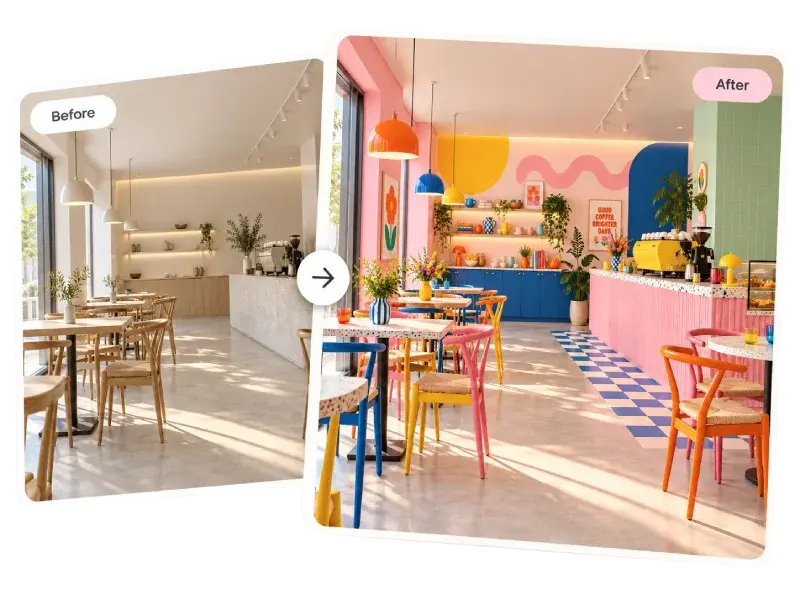
What Is AI Style Transfer in Architecture?
Style transfer gives one image the look of another: the brick and timber of a reference facade on your own building, the palette of a magazine interior on your own room. The design stays yours; the materials, colors and mood change.
In ArchiVinci, Style Transfer AI runs in the Edit module, and there are three ways to use it: with a reference picture, with a style described in words, or with a material sample applied to one surface. A new account gets 3 free credits.
Transfer a Style from a Reference Picture
Open the Edit module and upload the image you want to restyle: JPG, PNG or WebP, up to 5 MB.
Under "Upload object (optional)", add one reference picture: a material board, a facade or an interior whose look you want.
In the Prompt field, say what to take from the reference. The prompt is required.
Press Generate and compare the result with your image in the before/after viewer.
The example below is one run in the Edit module on the default engine with this prompt:
Restyle the house with the materials of the second image: brick, dark timber and black metal. Keep the shape of the house

The app passes the second picture to the AI model as something to work into your image. So name what you want from it: materials, colors, mood. A prompt that only says "apply this style" leaves the model to guess, and it may put the reference picture itself into the scene.
The editor is asked to keep everything else in the image, the composition and the camera angle. It is an instruction to an AI model, not a lock, so check small details.
Change the Style with Words
No reference at hand? Describe the style. The more concrete the words, the closer the result:
Restyle this living room in Japandi style: low oak furniture, linen fabrics and warm white walls
Restyle this facade as brutalist architecture: exposed board-formed concrete and deep window reveals
An edit keeps your image and changes its look. To render a room or a building again from a sketch, a 3D view or a photo in a new style, use AI Interior Design or AI Exterior Design.
Transfer a Material to One Surface
When only one surface should change, mark it under the image with the brush or the lasso and choose Apply texture. You can pick from a library of 103 materials in 15 categories or upload your own sample, for example a photo of the stone you specified. Only the marked area is meant to change, and the result becomes the next picture to edit, so you can restyle a scene surface by surface. Inpainting AI explains area edits in detail.
What Style Transfer AI Works With
One reference picture per run. To combine two looks, run two edits one after the other.
No strength slider, presets or seed number. For a stronger or a lighter effect, change the wording of the prompt.
Still images. Every result is a JPEG in the proportions of your upload; with a plan you can upscale it up to 4096 px on the long side.
One credit per image on the default engine, ArchiVinci 4.0, which is unlimited with a plan. With a plan you can also ask for up to 4 versions in one run. Plans are on the Pricing page.
Frequently asked questions about Style Transfer AI
What makes a good reference image for AI style transfer?
One that shows the look clearly: a material board, or a well-lit photo of a building or room of a similar kind to yours. A reference with one clear set of materials and colors transfers better than a busy scene. It has to be a JPG, PNG or WebP file of up to 5 MB.
Does AI style transfer keep the shape of my building or room?
It is asked to. The request keeps the composition and the camera angle, and you can add "keep the shape of the house" or "keep the furniture layout" to the prompt. An AI model redraws the picture, so compare the result with your original, above all windows, roof lines and proportions.
Can I apply a style to only part of an image?
Yes. Mark the part with the brush or the lasso and then describe the change, apply a texture or add a reference picture for that area. The rest of the image is left as it is.
Can Style Transfer AI restyle a video or a floor plan?
Not directly. Style Transfer AI works on still images of buildings and rooms. For a video, restyle the image first and animate the result with AI Image to Video. For a 2D plan, AI Floor Plan Coloring has its own four styles.