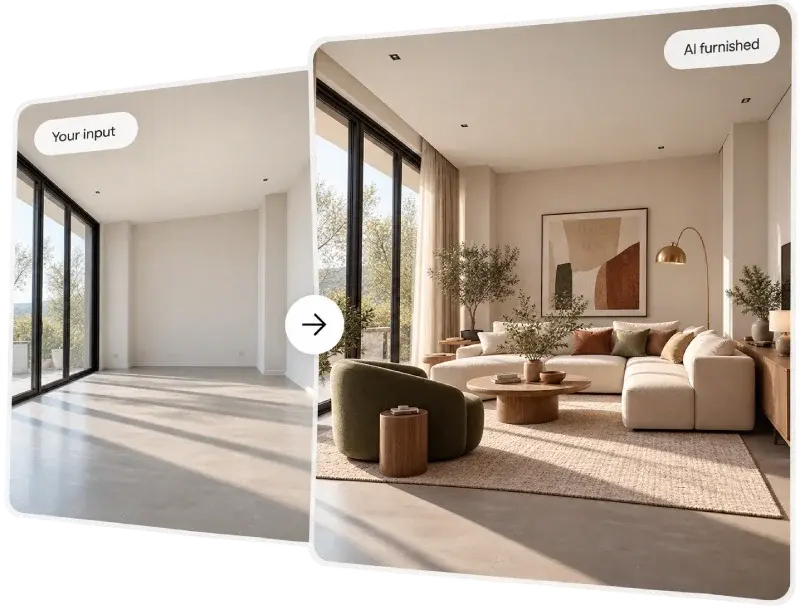
What Is the Furnish Room Generator?
The Furnish Room Generator adds furniture and decor to a picture of an empty room. You upload a photo or a render, write what the room should become, and ArchiVinci returns the same room furnished: a living room with a sofa and a rug, a bedroom with a bed and lamps, an office with a desk and shelves.
In the app it is the Furnish module. There is no room-type menu and no style menu: the room, the pieces and the style are whatever you write in the prompt. A new account gets 3 free credits.
How to Furnish an Empty Room with AI
Open the Furnish module and upload a photo or render of the empty room: JPG, PNG or WebP, up to 5 MB.
Describe in the Prompt field how to furnish it. In this module the prompt is required.
If it helps, pick "Add object" tags such as Sofa, Coffee table, Bed, Lamps, Plants or Paintings.
Press Generate and compare the result with your photo in the before/after viewer.
Download the result, change the prompt and run it again, or fix one piece with Edit render.
Prompts for Furnishing a Room
Name the room, three to five main pieces and the style. These prompts can be copied as they are:
A Scandinavian living room with a grey sofa, an oak coffee table and a wool rug
A bedroom with a low oak bed, linen bedding and two bedside lamps
A home office with a white desk, a black chair and a wall of bookshelves
The example below is one run in the Furnish module on the default engine with the first prompt.
The AI works from your picture, so the walls, the windows and the camera angle usually stay as they are. Compare the result with your photo before you use it: an AI model draws the furnished room as a new image.
After Furnishing: Change One Thing
A furnished result is a starting point. ArchiVinci has a tool for each next step:
Swap one piece: press Edit render under the result, mark the piece and describe the replacement. Modify Room shows how.
Add a specific product from its own picture: Place Object.
Start from a room that is not empty: clear it first with Remove Furniture.
Furnish a plan instead of a photo: Furnish a 2D Floor Plan.
Prepare listing photos: Virtual Staging AI covers staging for real estate from start to finish.
Furnish Room Generator: Cost and Output
One image costs one credit on the default engine, ArchiVinci 4.0, and with a plan this engine is unlimited. With a plan you can also ask for up to 4 versions in one run; a free account makes one image per run. Four partner models in the Render engine menu are paid with coins. Plans are on the Pricing page.
Every result is a JPEG image in the proportions of your upload, without a watermark. With a plan you can upscale it up to 4096 px on the long side. Results stay in the render history for 7 days.
Frequently asked questions about the Furnish Room Generator
Does the room have to be empty?
It works best on an empty room, because the request asks the AI to furnish the space it sees. For a room that already has furniture, clear it first with Remove Furniture, or change single pieces with Modify Room.
Can I choose the exact furniture the Furnish Room Generator adds?
You choose it with words: the kind of piece, its material, its color and where it stands. The result shows furniture that fits the description, not a catalog product, and there is no shopping list. To show one specific product, add it afterwards from its own picture with Place Object.
Does the Furnish Room Generator keep the walls and windows of my room?
Usually, yes: the AI works from your picture and furnishes the room it shows. Because the furnished room is drawn as a new image, small things such as a socket, a radiator or the view through a window can come out differently, so compare the result with your photo.
How do I get a different style for the same room?
Run the same photo again with another prompt. The photo stays in place between runs, so you can compare a Scandinavian, an industrial and a classic version of the same room.